
How it works
How to replace a full person in an existing video
Start with a character photo and a short clip. See a real test, follow the steps and know what can change before you spend a credit.
Real input and output test
Tested on : a five-second excerpt of a community clip, a fictional adult character photo and the resulting video. This test used the same replacement instructions and processing settings as the tool.
An already-remixed community clip, not an unedited original.
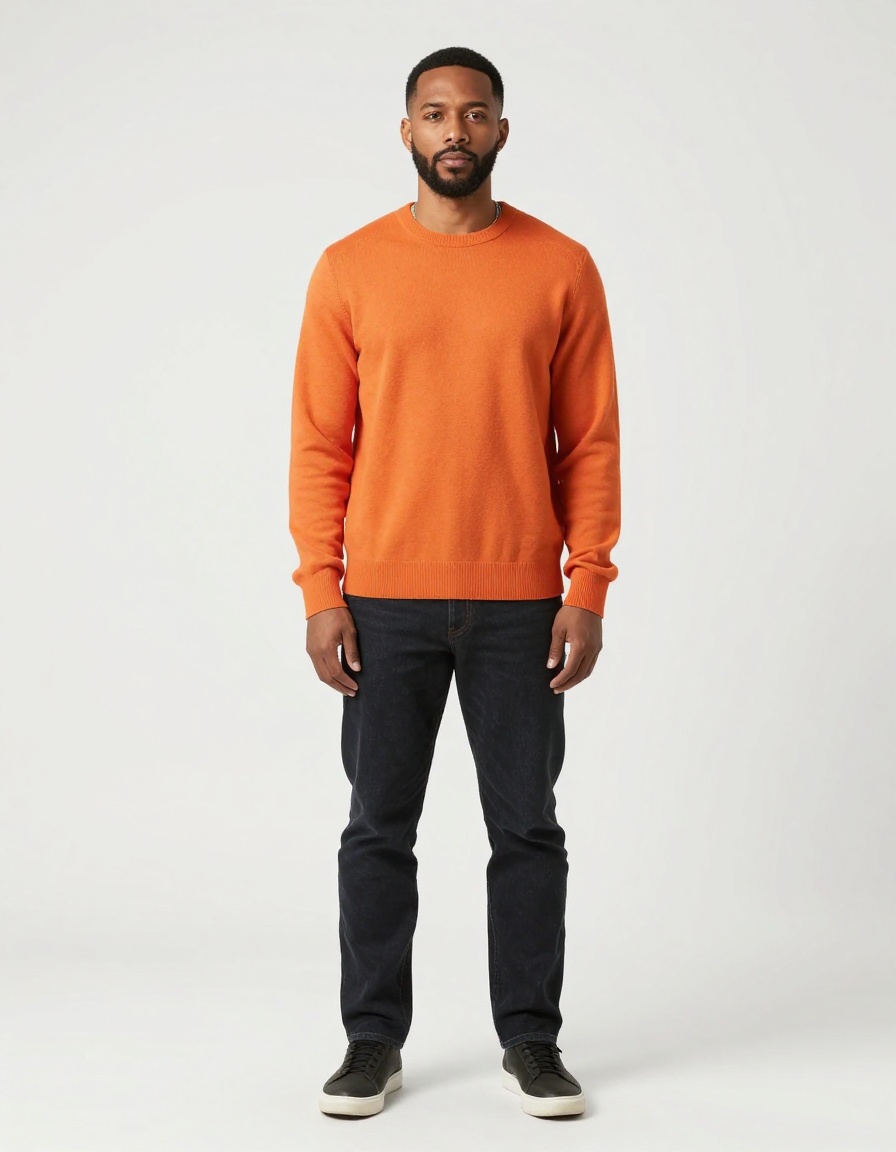
A fictional adult in an orange sweater.
Generated replacement, with no retouching of the result.
What this shows
The central subject changes to the orange-sweater character and follows the main gestures. The result contains an audio track. The actual output is 1152 × 896 pixels, 150 frames; “720p” is the processing setting, not a guarantee of exact dimensions.
What to watch for
Nearby players, faces, clothing details and the background are also redrawn. Listen to both clips and check synchronization. This is one short test, not a guarantee of likeness, untouched scenery or results on every video.
Reference footage: community source on X. The source was already AI-edited. For your own uploads, use clips, likenesses and audio you have permission to edit.
How to make it
Choose your video
Use a short clip you have permission to edit. One clearly visible adult person works best. H.264 MP4, 1–15 seconds, up to 25 MB.
Add a character photo
Use one clear, well-lit photo of yourself or a consenting adult. JPG, PNG or WebP, up to 10 MB.
Make it yours
Sign in, buy a video credit, confirm your permissions and press Swap. Payment never starts a video automatically.
Review and download
Keep this page open while files upload and the request is submitted. Once your request is saved, you can leave and return to My videos with the same account. Review the result and label it as AI-made when sharing.
Character swap, face swap or image to video?
Character swap
You provide an existing clip and a replacement photo. The model can change the subject’s face, body appearance and clothing while using the clip’s performance as a guide. This is the workflow available here.
Face swap
A face-only edit aims to change the face while leaving the original body and clothing in place. Choose a dedicated face-swap workflow if keeping those details is essential.
Image to video
A still image is animated into a new scene. That is a different task from replacing a person in footage you already have. This site requires a source video.
File limits and what to expect
- Character photo
- One JPG, PNG or WebP, up to 10 MB. Use yourself, a consenting adult or an original adult character.
- Source video
- H.264 MP4, 1–15 seconds, up to 25 MB. Each side must be 128–1920 pixels. Trim longer clips before uploading.
- Video output
- MP4 with the 720p processing setting and source-guided framing. Exact pixel dimensions can vary. Original audio is requested; check the final sound and synchronization.
- Time and collection
- Allow roughly 2–5 minutes after submission, sometimes longer for queues or safety checks. This is an estimate, not a deadline. Return to My videos once your request is saved.
- Payment
- Single Video: $4.99. 3-Video Pack: $12.99. Each render uses 1 video credit. Both packs use the same settings; the larger pack does not render faster. No free generation or subscription.
- Private file storage
- Uploaded inputs are kept for up to 24 hours and results for 6 days. Download completed videos before they expire. Local browser drafts expire after 30 minutes.
Compare video packsOpen My videos
What you get
Source-led movement
The reference video guides the performance and timing. Complex motion, occlusion and fast cuts can reduce accuracy.
Source-guided scene
The model uses your camera framing and background as a guide. It can redraw nearby people, clothing and scenery; it does not preserve every original pixel.
Keep the original audio
The model is requested to retain the source audio. Audio and lip-sync quality still need review in the final result.
Photo tips
One clear main subject
Choose a continuous shot with one clearly visible adult as the main subject. There is no manual person selection or multi-person replacement. Surrounding people may also be redrawn.
Clear character photo
Face the camera in good light. Show the appearance and clothing you want to use. Avoid heavy filters, sunglasses and group photos.
Start with a simple shot
Choose steady lighting, a visible face and a continuous shot. Fast cuts, crossed arms, hands near the face and people passing in front make consistent replacement harder.
If something goes wrong
My video will not upload
Check the limits above. An MP4 file can contain a different video codec, so export it as H.264 MP4 if needed. Shorten or resize it before uploading; renaming the file extension does not convert it.
The face or background changed too much
Review the entire clip, including hands, nearby people and the sound. A shorter, unobstructed shot and a clearer reference photo may help, but every new completed render uses another credit and improvements are not guaranteed.
My request is taking longer
Check My videos before starting another request. Safety checks and queues can exceed the estimate. If a task is under review, do not resubmit it; contact Support so its status can be checked.
Contact SupportRead the refund policy
Before you pay
- Sign-in is required to buy credits and to generate. Credits are bought before generating.
- A render that definitely fails returns the credit to your balance.
- Source photos and reference videos are kept for up to 24 hours and finished videos for 6 days. You can delete a finished video earlier.
Ready? Add your photo on the home page. You only sign in when you press the make button.
Make your video